Autotiles for Godot, without the setup
Describe a terrain and get a complete 47-tile blob tileset, exported as a native Godot resource with terrain sets already configured. Import, open the Terrains tab, paint.
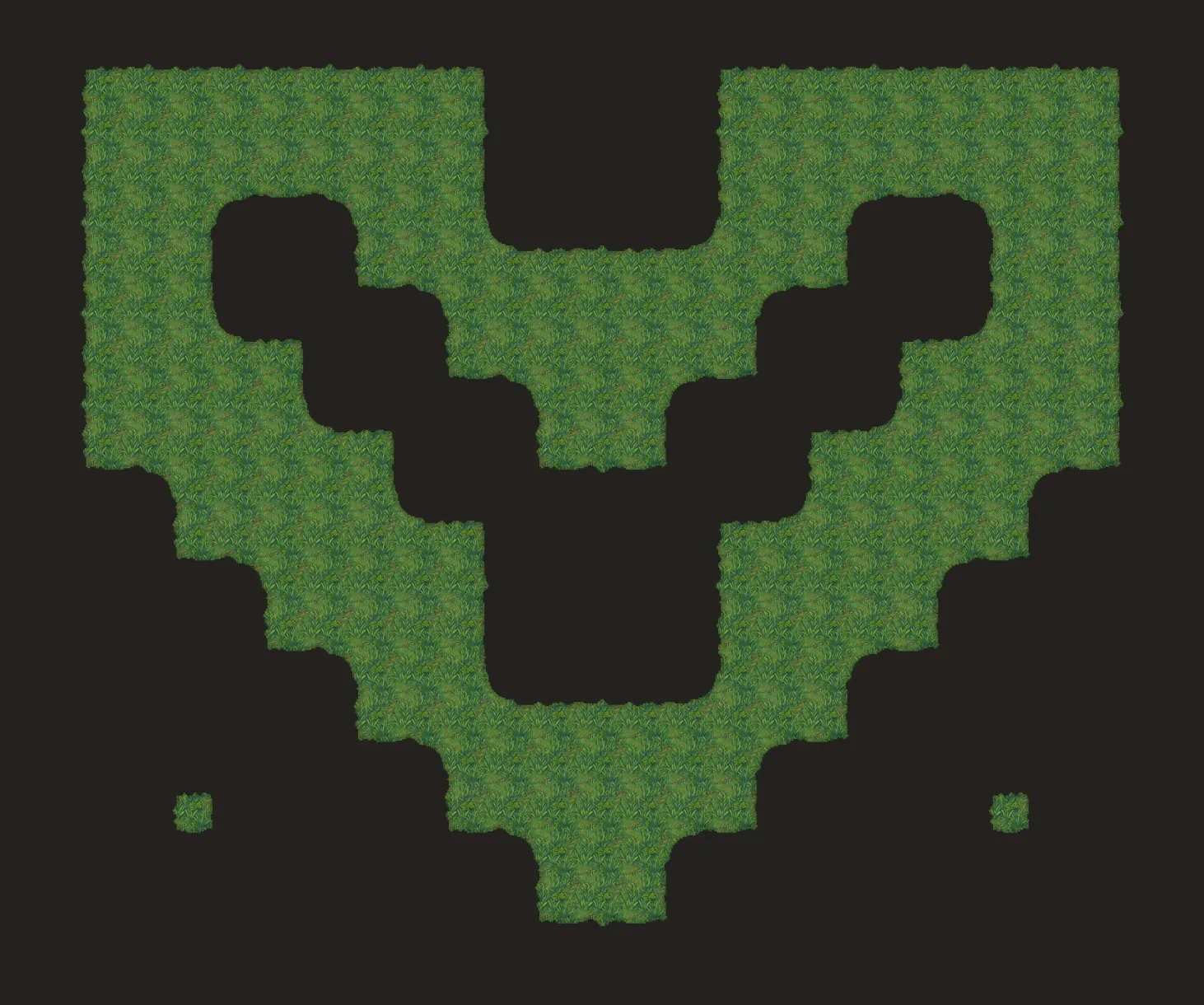
One prompt (“grassy field”), one generation: a full blob tileset painted into a map, with every edge, corner, and inner corner handled.
From prompt to painted terrain
Generating 47 matching tiles is half the job. Wiring them into Godot's terrain system is the other half. Tilewise does both.
47 tiles, every transition covered
A blob tileset covers edges, outer corners, inner corners, and every combination between them, so painted terrain looks right at every boundary. Each tileset is generated as one matching set with shaped, material-aware edges.
- Complete 47-tile blob layout from a single text prompt
- Six edge profiles: grass, stone, dirt, brick, wood, crystal
- New: Natural edge style with hand-painted organic edges at 64px and up
- Tile sizes from 16 to 256 pixels, with restyle and rescale
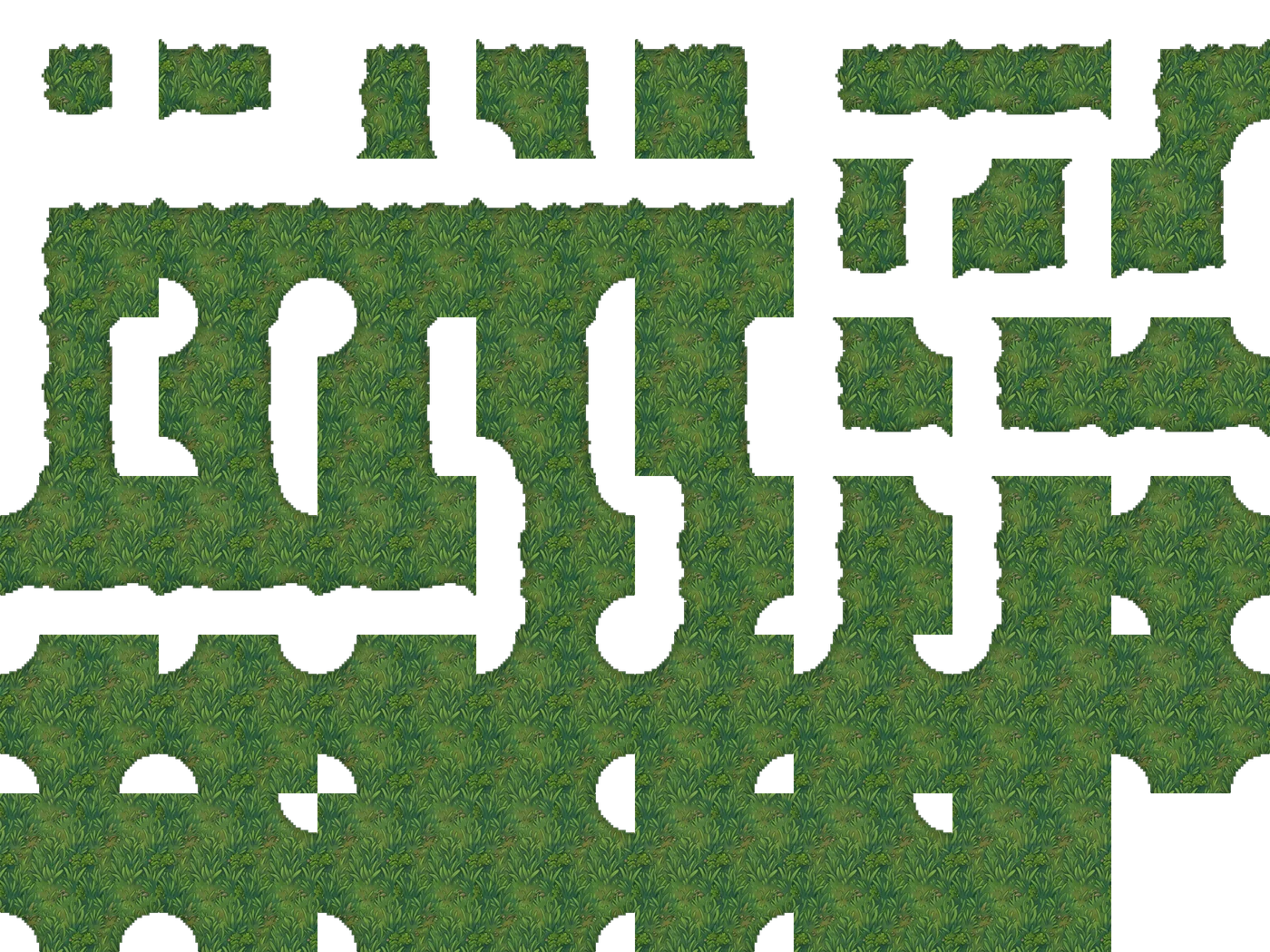
Terrain sets arrive wired
The exported .tres TileSet carries terrain configuration for every tile. In Godot that means no TileSet editor session and no clicking peering bits for 47 tiles: assign the resource to a TileMapLayer, open the Terrains tab, and paint. Edges and corners autocomplete as you draw.
- Native TileSet .tres for Godot 4, terrain peering bits included
- Also exports Tiled .tsx with Wang colors, .tsj, JSON, and plain PNG
- Two files in, painting terrain in under a minute
Three steps to painted terrain
- 1
Describe your terrain
“Mossy forest floor”, “grassy field”, “cracked desert stone”. Pick a tile size and an edge profile, and the whole 47-tile set is generated as one matching batch.
- 2
Preview it as a real map
The scene preview paints a full map with your set, so you can judge seams, edges, and how the terrain reads at a distance before exporting. Restyle or regenerate until it fits your game.
- 3
Export for Godot and paint
Download a PNG atlas plus a .tres TileSet with the terrain set configured. Drop both at your project root, assign the TileSet to a TileMapLayer, and paint from the Terrains tab.
Common questions
Two files: a PNG atlas with all 47 tiles, and a .tres TileSet resource that references it. The .tres carries a full terrain set: every tile has its terrain peering bits configured, so terrain painting works the moment you import. Place both files in your project root (the .tres references the PNG by its res:// path), assign the TileSet to a TileMapLayer, and paint from the Terrains tab.
The .tres export targets the Godot 4 TileSet format and its terrain system (the successor to Godot 3 autotiles), and works across Godot 4.x. For Godot 3 or other setups, the plain PNG spritesheet and JSON metadata exports work anywhere.
A tileset with every transition a terrain needs: edges, outer corners, inner corners, and each combination of them. Simpler 16-tile sets only check the four direct neighbors and fall apart where diagonal transitions meet. The 47-tile "blob" layout covers all cases, which is why painted terrain looks right at every boundary.
No. That is the point of this export: configuring peering bits for 47 tiles by hand in the TileSet editor takes the better part of an hour and is easy to get wrong. Tilewise writes the whole terrain configuration into the .tres for you.
Yes. Tilesets generate at sizes from 16 to 256 pixels per tile, and you can restyle or rescale an existing tileset without regenerating it from scratch.
Yes. Besides the Godot .tres, every tileset exports as a Tiled .tsx with Wang colors for terrain transitions, a Tiled .tsj, a JSON pack with tile metadata and masks, or a plain PNG spritesheet for Unity and any other engine.
Yes. Tilesets generated with a subscription are yours to use in personal and commercial projects without attribution. Free-tier outputs carry a watermark for previewing quality.