Props are where a 2D game's art either comes together or falls apart. Terrain fills the screen, but props sit on top of it: every tree, crate, lantern, and rock is placed directly against your tiles, where even a small style mismatch is impossible to miss. This guide shows how to generate 2D game props with AI that match the art you already have, delivered as transparent PNGs you can drop straight into your engine.
Why Props Are the Hardest Asset to Source
Textures are forgiving. A grass tile from one asset pack next to a dirt tile from another can pass, because both are busy surfaces without hard silhouettes. Props are not forgiving. They have outlines, lighting, and a rendering style, and the player's eye compares them against the terrain behind them constantly.
That is why the usual sourcing options disappoint:
- Asset packs are internally consistent but never match each other, or your existing art. The moment you mix packs, your scene reads as mixed.
- Commissioning gets you matching props, at a cost and turnaround that makes "just add a few barrels" a budget question.
- Drawing them yourself works if you have the skill and the hours. Most solo developers have neither to spare for decoration objects.
The missing piece is not "more props". It is props in your style.
What Makes a Prop Match?
When a prop looks native to a game, four things line up:
- Palette. The prop's colors are drawn from the same family as the terrain.
- Rendering style. Pixel density, outline treatment, and brushwork match. A clean-vector barrel on painterly grass never blends in.
- Lighting. Highlights and shadows fall consistently with the rest of the scene.
- Perspective. A side-view prop in a top-down game (or vice versa) is instantly wrong, however pretty it is.
Style-matched generation handles all four at once, because instead of describing the style in words and hoping, you show the AI an image that already has the answer.
The Style Reference Approach
Tilewise's props editor works from a style reference: an image whose art style the generated props should match. The reference can be anything you own. A texture or tileset you made in Tilewise, a platform from a scene kit, or any image you upload from your existing game.
The AI reads the reference's palette, rendering, and lighting, then paints a whole set of props to match. Each prop is cut out automatically and delivered as an individual transparent PNG.
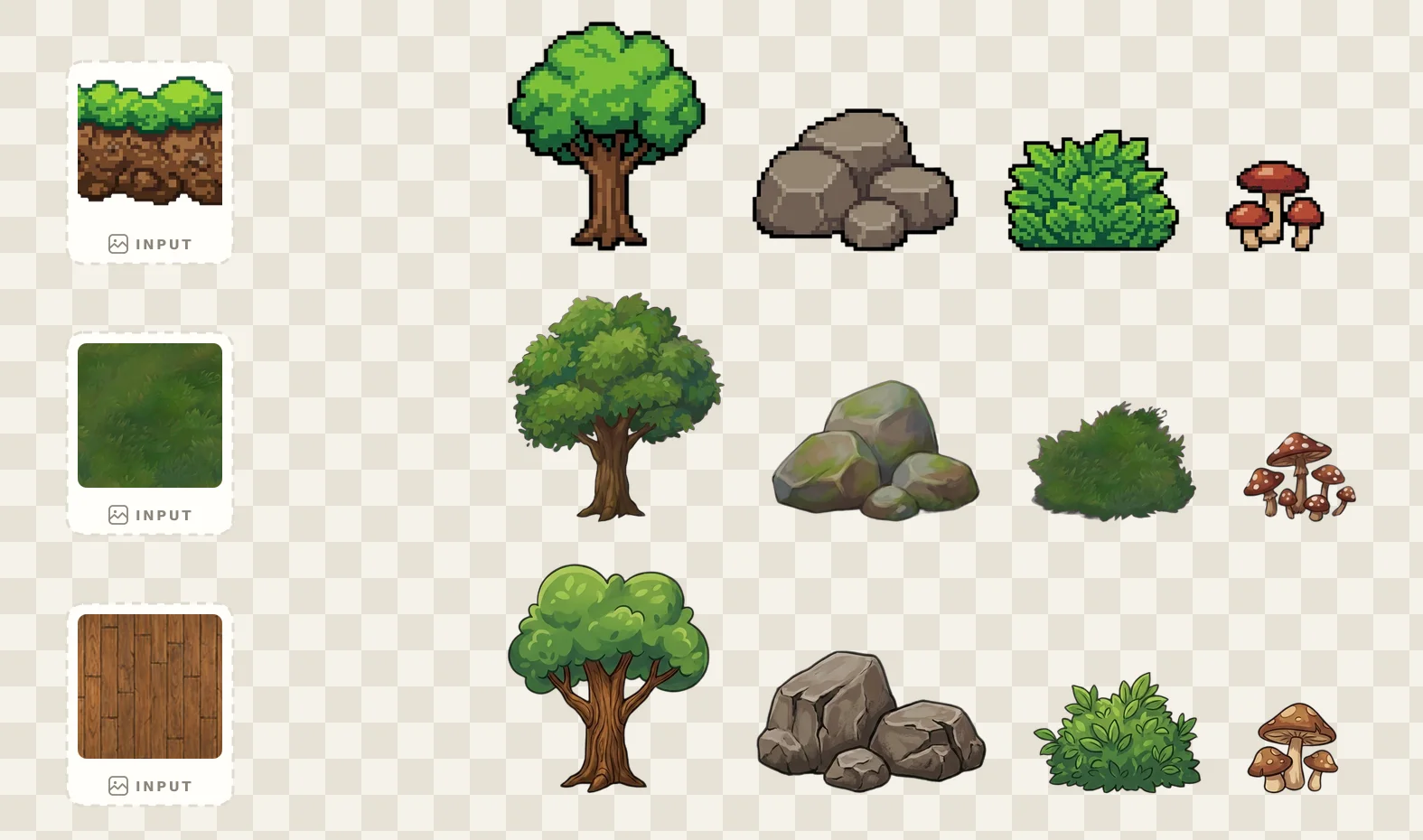
The same prompt, three different references, three different games. That is the entire idea.
Step by Step: Generating Style-Matched Props in Tilewise
1. Create a Props Project
Create a new project and pick the Props editor in the project type chooser. It is a dedicated workspace for exactly this job: reference in, prop set out.
2. Pick a Style Reference
Choose an asset from any of your Tilewise projects, or upload an image. If you are matching an existing game, upload a screenshot region or an asset that shows the style clearly: a terrain tile or a mid-size object works better than a UI screen or a tiny icon.
Uploaded references are used for the generation and are never stored on Tilewise servers.
3. Describe the Props You Need
Ask for specific objects, or let Tilewise pick a natural assortment that fits the reference. You also choose a perspective: side view for platformers, top down for RPGs and strategy games, or neutral for props that work in either.
Good prop prompts:
- "Market stall props: crates, sacks, hanging lanterns"
- "Forest floor decorations: fallen logs, ferns, red mushrooms"
- "Dungeon clutter: bones, broken pottery, a rusted cage"
- "Pick a natural assortment for me"
4. Curate the Set
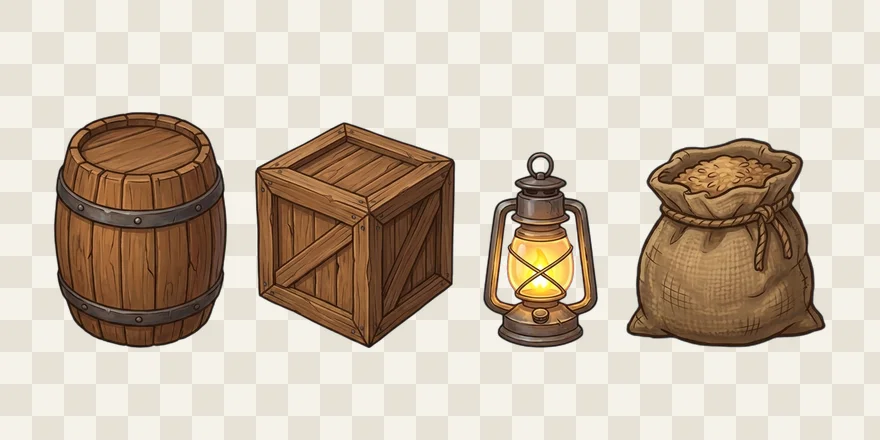
One generation produces a whole set of props. Remove any you do not want, then generate again to grow the set: the new props keep matching, because the reference has not changed.
5. Export Transparent PNGs
Every prop exports cut to its own transparent PNG, ready to place, layer, and reuse anywhere in your levels. Add the optional JSON manifest and you get each prop's dimensions for engine-side import. Since the output is standard PNG, it works in Godot, Unity, GameMaker, or any engine you build with.
Props Compound Across Your Whole Project
Style references make asset work compound instead of sprawl:
- Generate a texture for your terrain, then point the props editor at it for matching decorations.
- Build a platformer scene kit and reuse its platform as the reference for extra props the kit did not include.
- Upload art from the game you have been building for a year, and finally add the clutter you have been putting off.
Every asset you save becomes a reference you can point at later, which means your art style gets easier to extend the longer you work.
Tips for Better Style-Matched Props
Choose a reference that shows the style, not the subject. The AI matches how the reference is drawn, not what it depicts. A grass texture is a fine reference for tavern furniture if the rendering style is what you want to match.
Match the perspective to your camera. Side view for platformers, top down for overhead games. If you are decorating both, generate two sets from the same reference and each stays consistent with the other.
Ask for object families. "Market stall props" produces a coherent group that belongs together. Shopping-list prompts of unrelated objects work, but themed sets dress a scene faster.
Grow the set instead of restarting. Generating again with the same reference extends the set in the same style. Save the set to your library and come back to it when the level needs more.
Use your best existing asset as the reference. The prop set can only be as on-style as the reference you show it. Pick the asset that most looks like your game at its best.
Get Started
Tilewise gives you free credits when you sign up, enough to generate your first prop sets. Pick the asset that best shows your game's style, point the props generator at it, and see your own art style come back as a full set of decorations.