An AI tileset generator lets you skip the most tedious part of 2D game development — drawing dozens of matching tiles by hand. With Tilewise, you describe a material in plain text and get a complete 47-tile blob tileset in seconds, ready to export for Godot, Tiled, or Unity.
If you've worked with basic 16-tile autotile sets, you know they handle straight edges and simple corners but fall apart where three or more terrain types meet. Inner corners look blocky, diagonal transitions are missing, and the result feels like a game from 2005. A 47-tile blob tileset covers every possible terrain transition — edges, outer corners, inner corners, and every combination between them.
The problem? Creating 47 hand-drawn tiles that all match each other is brutally time-consuming. Even experienced pixel artists spend days on a single blob tileset. And if you want multiple terrain types (stone, grass, dirt, wood), multiply that work for each one.
What Is a Blob Tileset?
A standard autotile set checks the 4 direct neighbors (up, down, left, right) of each tile to decide which sprite to use. That gives you 16 possible combinations and 16 tiles.
A blob tileset checks all 8 neighbors — the 4 edges plus the 4 diagonal corners. That produces far more possible combinations, but many are visually identical. After removing duplicates, you end up with 47 unique tiles that cover every case.
The visual difference is significant:
- 16-tile autotile: Inner corners are sharp 90-degree angles. Diagonal transitions are missing entirely. Terrain shapes that work with straight edges look fine, but anything organic — coastlines, cave walls, forest edges — looks jagged.
- 47-tile blob tileset: Inner corners are smooth. Diagonal neighbors influence the tile shape. Organic terrain shapes look natural because every corner combination has a dedicated tile.
Most modern tile-based engines support blob tilesets natively. Godot's TileMap terrain system, Tiled's Wang sets, and Unity's Rule Tiles all work with 47-tile sets.
The Traditional Way: Drawing 47 Tiles by Hand
Traditionally, creating a blob tileset means:
- Draw the base texture — the filled center tile that repeats across solid terrain areas.
- Draw every edge variant — top, bottom, left, right, and each combination.
- Draw every corner variant — outer corners and inner corners for all diagonal positions.
- Ensure consistency — every tile must match every other tile at shared edges. A top-edge tile placed next to an inner-corner tile must have pixel-perfect continuity along their shared border.
- Test in-engine — drop into your map editor, paint terrain, and check for visible seams or misaligned pixels.
- Fix and iterate — inevitably some combinations reveal edge mismatches that aren't obvious until you see them tiled together.
For a skilled artist this takes days per material. For someone without pixel art experience, it's a project-ending bottleneck.
The AI Tileset Generator Approach
Tilewise generates a complete 47-tile blob tileset from a text description in two steps:
- AI generates a base texture — you describe the material ("mossy stone bricks", "dry cracked earth", "dark wooden planks") and the AI produces a texture optimized for small tile sizes with strong, readable visual features.
- Procedural stamping creates all 47 tiles — the texture is stamped through 47 blob template masks with material-aware edge profiles. Every tile is geometrically guaranteed to match its neighbors because they all come from the same source texture and the same set of masks.
No manual edge matching. No pixel-level alignment work. The tiles match because the system that creates them enforces it.
Step by Step: Generating a Blob Tileset in Tilewise
1. Create a Project and Switch to Tileset Mode
Create a new project in Tilewise (or open an existing one). In the editor, switch to Tileset mode using the toggle in the texture phase toolbar. This switches to the dedicated tileset workflow.

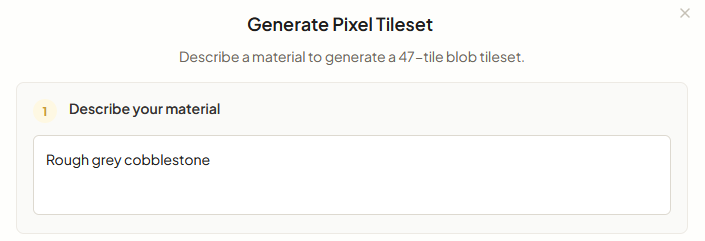
2. Describe Your Material
Type a prompt describing the surface material you want. Tileset generation is optimized for bold, high-contrast features that read well at tile sizes from 16px to 256px.
Good prompts for tilesets:
- "Rough stone dungeon floor with scattered gravel"
- "Lush green grass with small wildflowers"
- "Weathered red brick wall"
- "Packed brown dirt path with small pebbles"
- "Dark hardwood planks with visible wood grain"
- "Glowing purple crystal surface with bright veins"
You can also upload reference images to guide the style — the same reference system used for standard textures works here too.
3. Choose Your Tile Size
Pick a tile size: 16px, 32px, 64px, 128px, or 256px. This is the size of each individual tile in the final tileset. Choose based on your game's resolution:
- 16px — classic pixel art, retro games
- 32px — standard for most 2D games
- 64px — higher detail, HD pixel art
- 128px — high resolution, detailed close-up views
- 256px — maximum detail for painterly and HD art styles
4. Generate
Hit generate. Tilewise creates the base texture using AI, then stamps it through all 47 blob masks on the server. You'll see the complete tileset appear as a spritesheet with every tile laid out.
The entire process takes a few seconds.
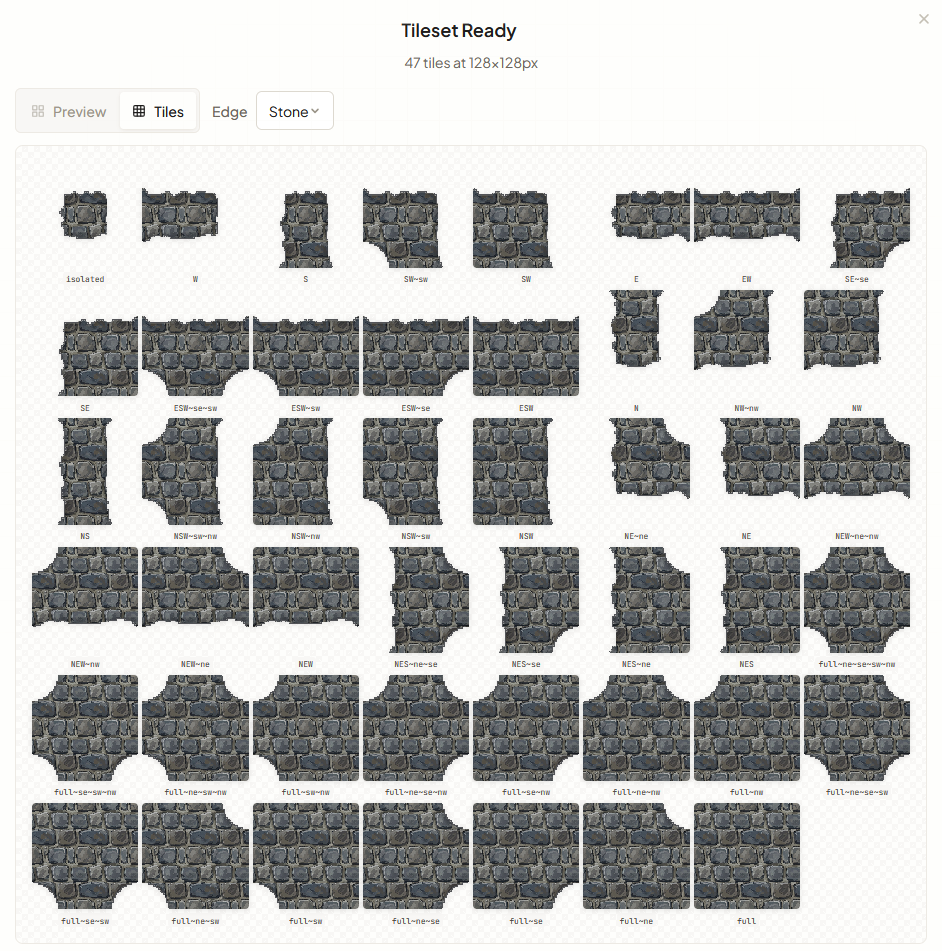
5. Choose a Material Category
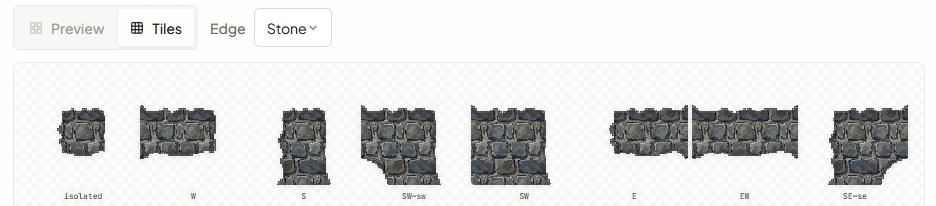
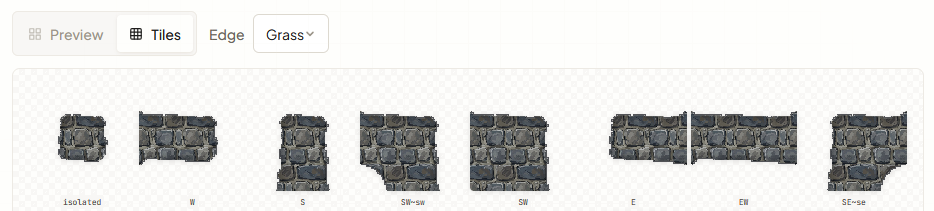
This is where the tileset generator really differentiates. Each tile's edge profile — the shape of its borders — is tailored to match real-world material behavior. Tilewise offers six material edge profiles:
- Stone — rough, irregular edges with chipped corners
- Dirt — soft, eroded edges that crumble naturally
- Brick — structured edges with mortar-line breaks
- Wood — splintered edges with grain-following breaks
- Crystal — sharp, faceted edges with angular breaks
- Grass — wispy, organic edges that blend softly
You can switch between edge profiles to see which one fits your texture best. If your stone texture looks better with soft, crumbling edges instead of sharp chipped ones, just swap and see the difference instantly.
Prefer edges that look painted rather than cut? Tilewise also has a Natural edge style where the borders themselves are painted art: overhanging grass tufts, chipped stone, crumbling dirt. See the hand-painted tileset edges guide for how it works.
6. Save and Export
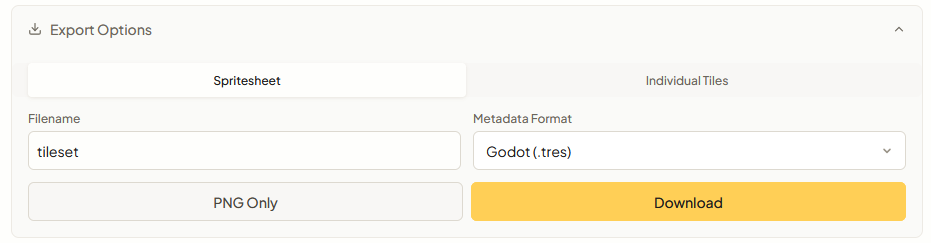
Save the tileset to your library for reuse, then export. Tilewise provides engine-ready export formats:
- Godot
.tres— terrain bits pre-configured, drop into your TileMap (more on the Godot autotile export) - Tiled
.tsx/.tsj— Wang set rules defined, open in Tiled and start painting - JSON metadata — tile layout data for Unity or custom engines
- PNG spritesheet — all 47 tiles in a single image
- Individual PNGs — each tile as a separate file
The metadata formats mean you skip the tedious step of manually configuring which tile goes where in your engine's tileset editor. Import the file and your terrain painting tools just work.
Why 47 Tiles Instead of 16?
If you're used to basic autotile sets, you might wonder whether 47 tiles is overkill. Here's a practical comparison.
Paint an L-shaped lake on your terrain grid. With a 16-tile set, the inner corner where the two edges meet gets a generic corner tile — usually a sharp 90-degree cut. Now paint a coastline with gentle curves. Every bend that involves a diagonal neighbor gets that same sharp corner.
With a 47-tile set, each of those corners has its own tile. The inner corner of the L-shape has a smooth concave curve. A coastline bend where three edges converge gets a tile designed for exactly that configuration. The difference is immediately visible when you paint organic shapes.
Most modern 2D engines expect blob tilesets for terrain. Godot 4's TileMap terrain system is built around them. Tiled's terrain tool uses them. Going with 47 tiles isn't overkill — it's the current standard for terrain that looks right.
Tips for Better AI-Generated Tilesets
Describe materials, not scenes. The tileset generator produces a surface texture, not an illustration. "Mossy cobblestone" works better than "a cobblestone path leading to a castle." Focus on the material itself — its color, weathering, surface details.
Use references for art direction. If your game has an established art style, upload a reference image from your existing assets. The AI will match the palette and rendering style, keeping your tileset visually consistent with the rest of your game.
Try multiple material profiles. Since re-stamping is free, experiment with different material categories. A stone texture with wood-style splintered edges can look like cracked flagstone. A grass texture with crystal-style sharp edges might work for magical terrain.
Match tile size to your camera. If your game camera will be zoomed out far, 32px or even 16px tiles are fine — the player won't see fine detail anyway. If your camera is close, 64px or 128px tiles give you more visual richness per tile.
Combine with autotiles for terrain transitions. Blob tilesets define a single terrain type. For transitions between two terrains (grass meeting dirt, stone meeting water), use Tilewise's autotile generator — it creates 16-tile transition sets between any two textures in your library. Together, blob tilesets for terrain interiors and autotiles for terrain boundaries give you a complete terrain system.
Get Started
Tilewise gives you free credits when you sign up. If you've been putting off terrain art because drawing 47 matching tiles feels like too much work, try generating your first tileset and see how fast it can be.